
Quick Start
This walk through will get you started in 2 minutes, for more in depth details see links
Add a Project
For tracking time on your initiatives or formal projects we need a add a project.
- Select the "+" indicator at the top of the Navigation Bar
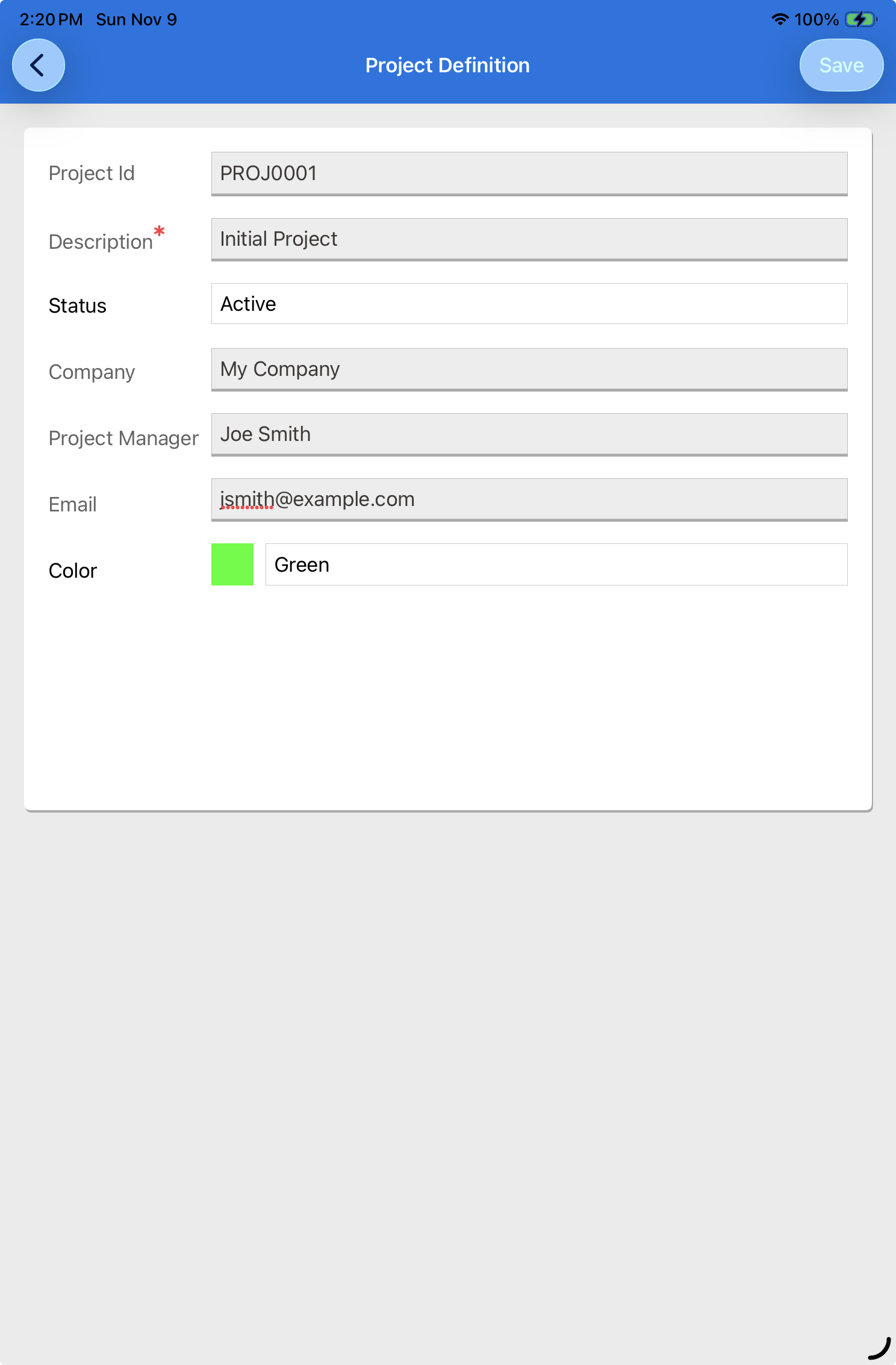
- Enter values for
- ProjectId - This is any ID you or your firm or client might use to distibguish this projects activities.
- Project Description - You can use the project name or description of the project here, this is a requried entry.
- Select the "Active" tatus from the drop down that is displayed.
- Type the name of the project manager, this will show on reports.
- Email - Enter the email address of the project manager (Not yet used)
- Color - Select any Color from the drop down. In case you are active on many projects this gives you a way to visually identify them.

Project Information
Add a Task
Tasks are the onject that time is captured under.
- Select the "+" Add button.
- In the task information dialog enter as follows
- W.B.S - Enter a WBS Code if you have one otherwise you can use this field to create your own sequence, enter 1.0
- Task - Enter the name of the task, make it short
- Enter any details about the task
- Press "Save"
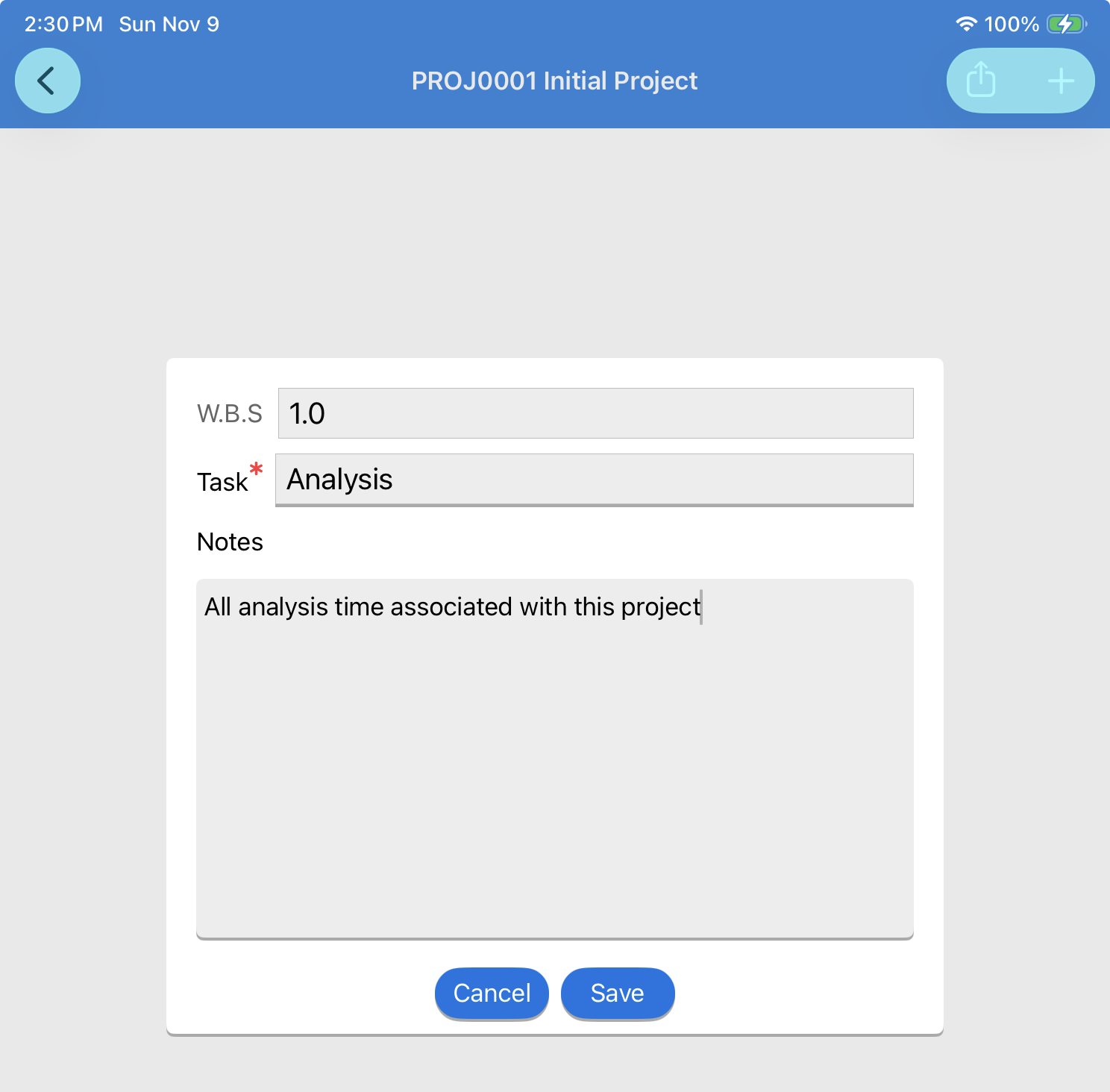
ItsAboutTime-TaskInfo
Track your time
To start tracking time it as easy
- Select the project and task you want to start your time tracking
- Select the "" button , thats it, the device has set your start time and is keeping track of your time.
- When your done, select the pause button.
- To see your time select the task anywhere but at the "" button and you will see a list of all your time entries.